WPBlockfolio
To get started with the themes, first, you have to install them. Here are the step-by-step instructions:
- Login to your WordPress admin dashboard.
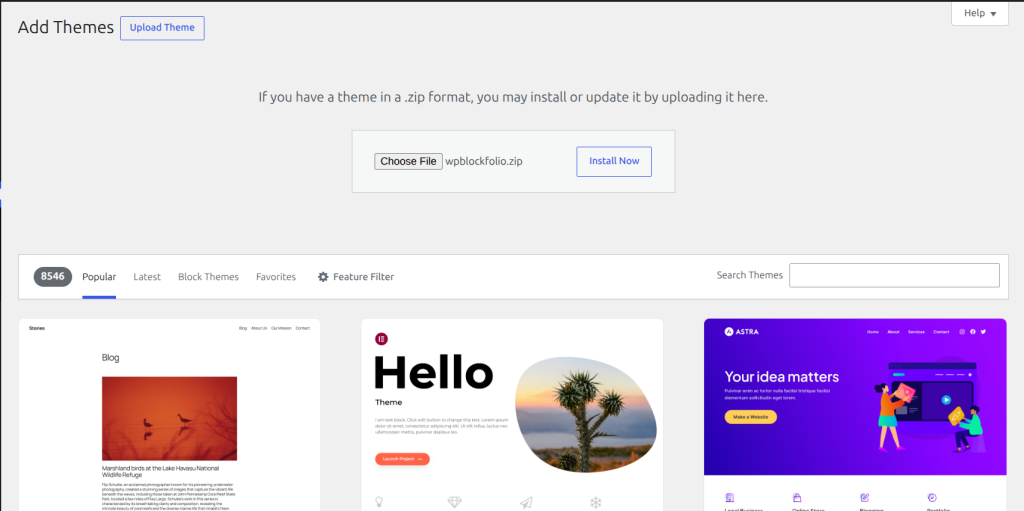
- Click on Appearance> Themes> Add New> Upload theme.
- Upload wpblockfolio.zip.
- Activate the themes
Once you activate the themes, go to Dashboard > Appearance. Then you can see the Editor option right below the Themes. Click on the Editor and you can start with customizing your website.
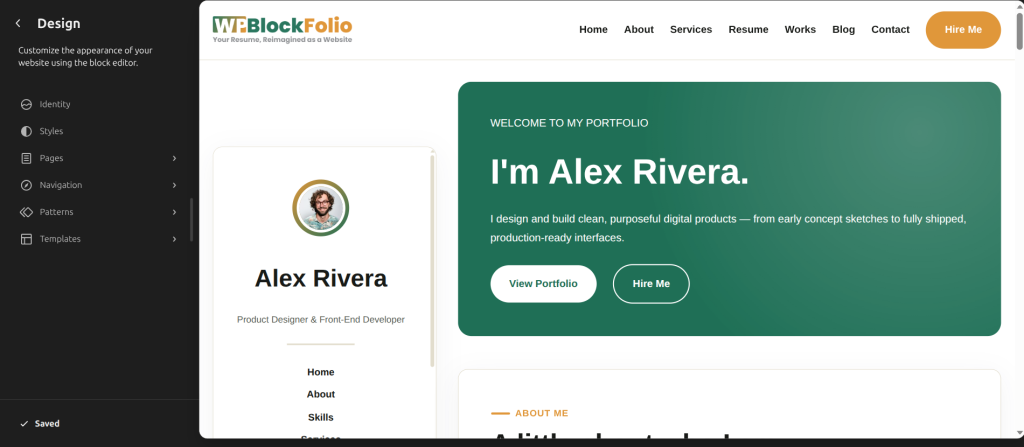
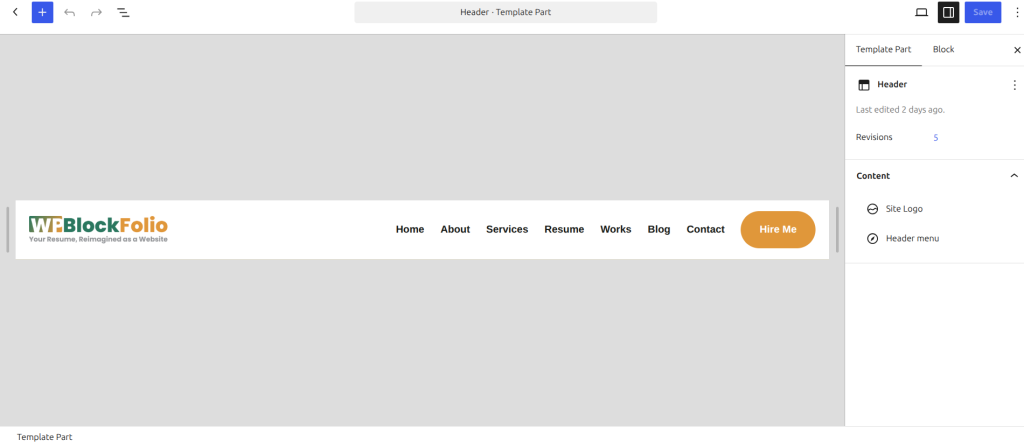
You will see the website’s header on the top of the screen. You can click on the section and customize it to your liking. Then, you can save the changes. The Header has advanced settings for block name, title, area, HTML element, and additional CSS Class(es).
You can also change the Header setting by:
- Go to your Dashboard and click on Appearance.
- Click on the Editor option.
- Then click on Patterns.
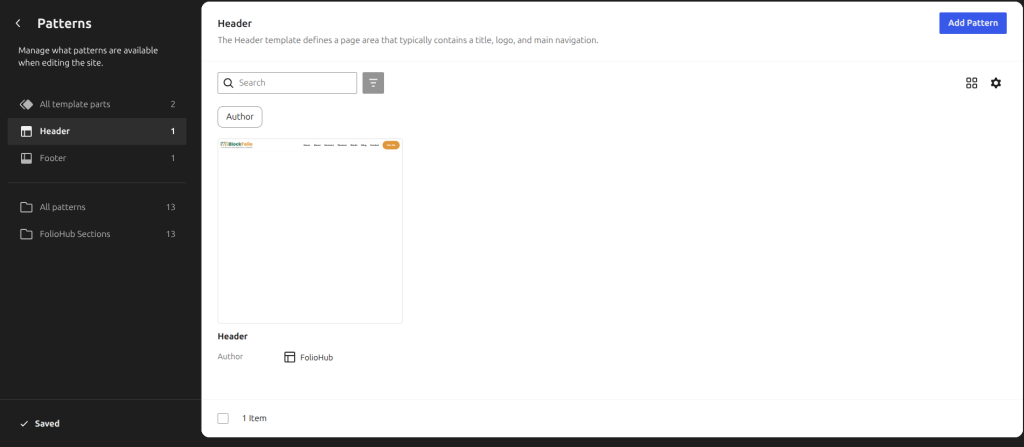
- There are different template parts, select the Header section.
- Customize the header and save your changes.
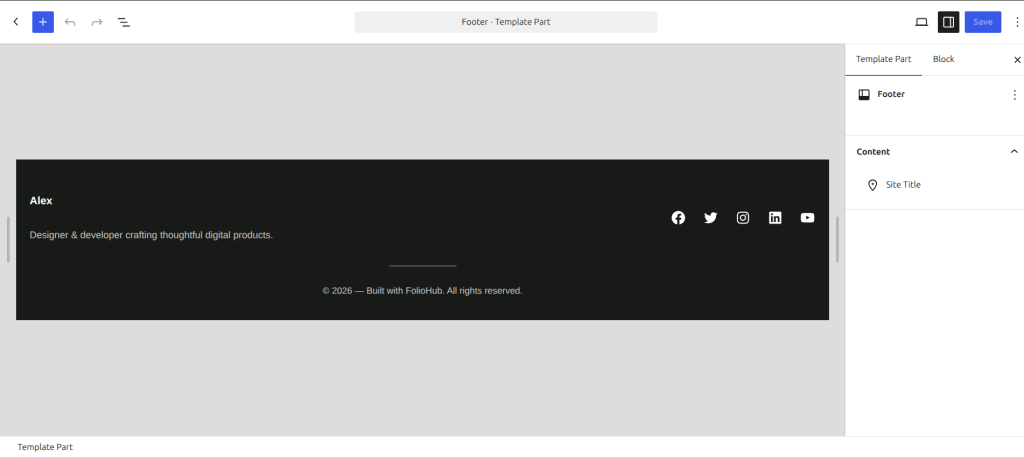
At the bottom of the screen, as you go on scrolling, you will see a footer. Click on the section to customize the footer and you can also insert social media icons. You can link the icon with the related social media platforms. Similarly, you can also change the color of the text, background, typography, and dimensions. The advanced setting includes block name, HTML anchor, additional CSS Class(es), and styles.
The Footer setting can also be changed by:
- Go to the Dashboard and click on Appearance.
- Click on Editor.
- Go to the Patterns option.
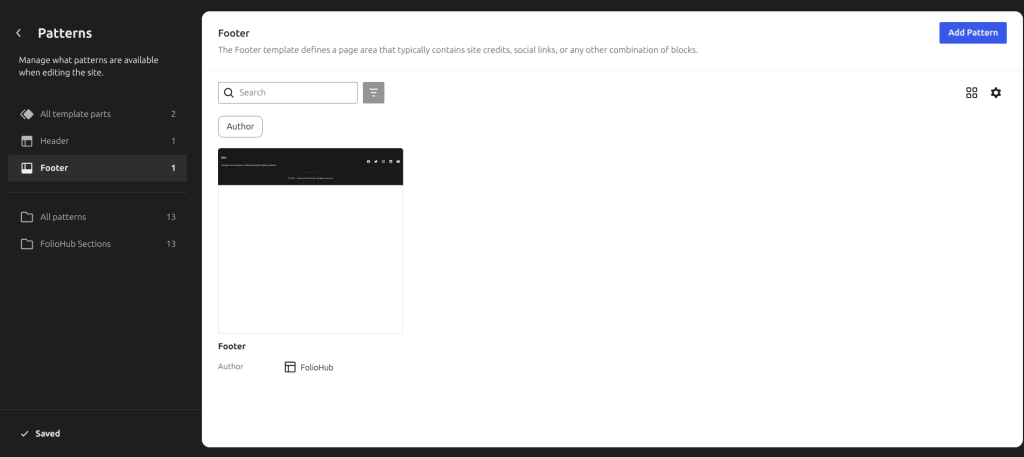
- Go to the Template parts.
- Select the Footer and customize the section.
- Save the changes.
The WPBlockfolio theme is a Full Site Editing theme. You can customize the website’s appearance using the block editor.
Once you click on the Design, you will see the Navigation. Click on Navigation and you will see menu like Header menu. This menus are a curated collection of blocks. It allows visitors to get around your website.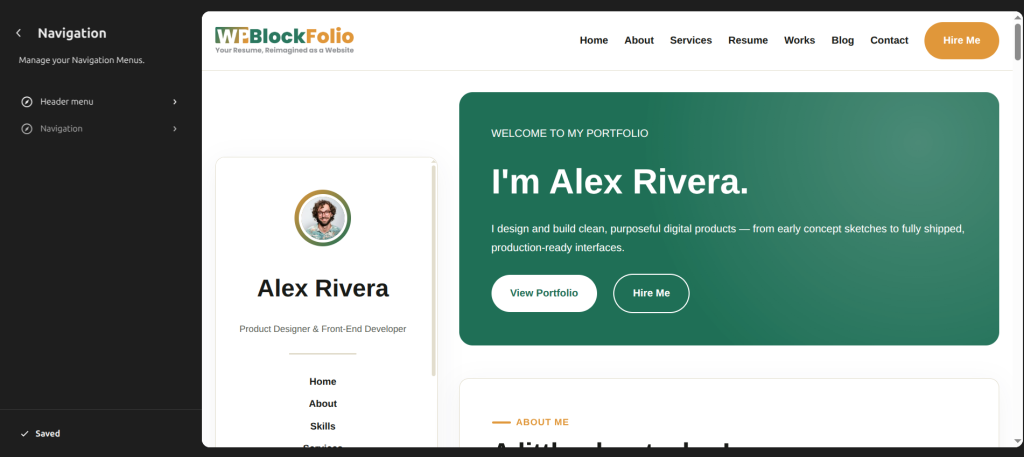
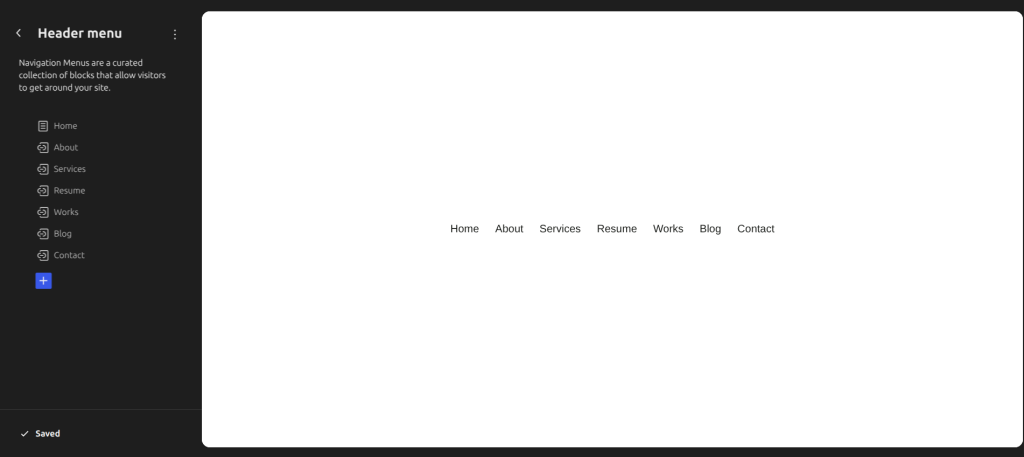
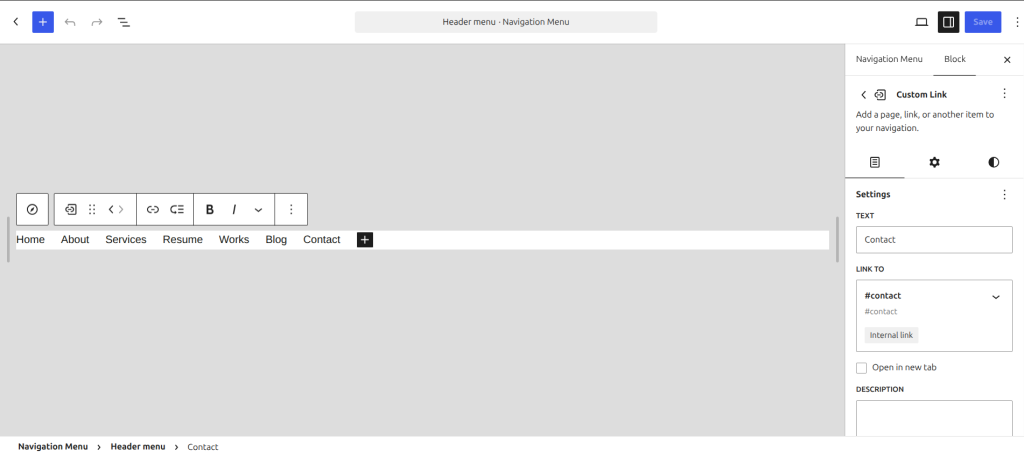
On the Design, you can also see the Styles menu. You can fully customize how the theme looks by using different style combinations.
The Pages menu has options for browsing and editing pages of your websites.You can also add new pages and design them with Gutenberg blocks and block editor directly from this menu.
The templates section has pre-built layouts you can use for your website. Its customization options include blank, blog home, index, no title, page: 404, pages, search results, and single posts. Similarly, there is also a menu to manage all templates.
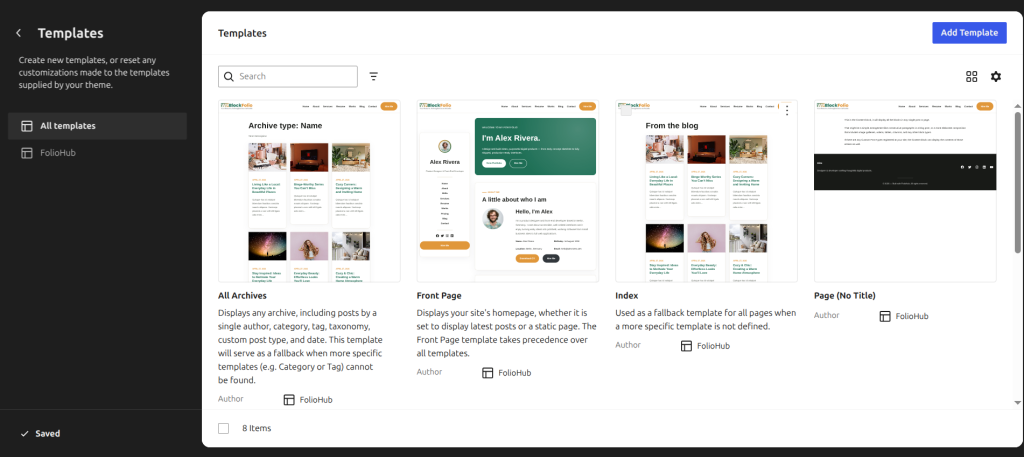
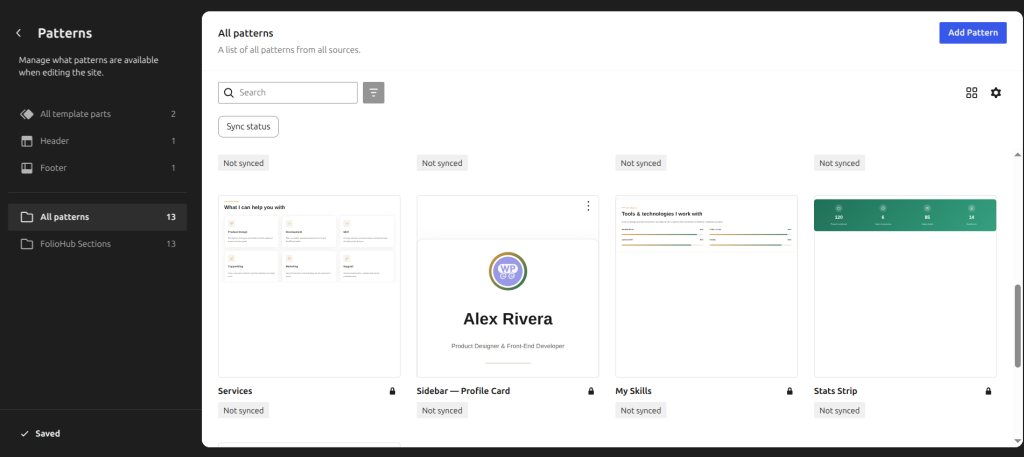
The patterns section allows you to manage what patterns are available while editing your website. These patterns include hero, skills, features, posts, testimonials, sidebar-profile and many more.
The option also includes template parts for customizing the header and footer. Similarly, it also includes the manage all patterns and template parts option.